

Last Updated: October 23, 2026
Quick Summary
How to set up a guitar for studio recording starts with preparing your instrument by replacing old strings 24 to 48 hours before recording, checking intonation, adjusting action and neck relief, and eliminating noise sources. Next, choose your recording method, direct input, amplifier microphone recording, or amplifier modeling, then configure your signal chain, set input levels to peak around -12 dB to -6 dB, and monitor your sound with quality headphones.
- Replace strings 24 to 48 hours before recording so they settle and stretch properly.
- Check intonation by comparing the 12th fret harmonic to the fretted note; they should match exactly.
- Set input levels to peak around -12 dB to -6 dB to avoid clipping and maintain headroom.
- Enable direct monitoring on your audio interface to eliminate latency during recording.
Table of Contents
- Prepare Your Guitar Before Recording
- Choose Your Recording Method
- Set Up Your Recording Signal Chain
- Set Input Levels and Monitor Your Sound
- Record Your Electric Guitar at Home
- Troubleshoot Common Recording Issues
- Post-Recording Checklist
- Frequently Asked Questions
Prepare Your Guitar Before Recording
Learning how to set up a guitar for studio recording starts long before you plug in. A poorly maintained guitar won't sound good no matter how expensive your gear is.
Check and Replace Strings
Old strings sound dull, lose tuning stability, and add noise; new strings give you brightness, sustain, and consistent pitch.
Replace your strings 24 to 48 hours before recording so they settle and stretch. Record immediately and you'll spend the session constantly retuning.
When choosing strings, match them to your playing style and tone goals. For recording, many musicians prefer a balanced set that captures both clarity and warmth.

Nickel-plated steel wrap delivers a warm, punchy tone that records well across most genres.
Tune and Check Intonation
Tune with a quality clip-on tuner or app, let the strings settle, then tune again.
Intonation is how well your guitar plays in tune across the fretboard.
To check intonation, play the 12th fret harmonic on each string. Compare it to the pitch of the fretted note at the 12th fret. They should match exactly.
Adjusting intonation requires a screwdriver and basic knowledge of your bridge type; many saddles have small screws that move them forward or backward.
Adjust Action and Neck Relief
Action is the height of the strings above the fretboard. High action is harder to play and adds finger noise; low action causes buzzing when strings vibrate against frets.
For recording, aim slightly lower than your live action to reduce finger noise, while keeping enough clearance to avoid buzzing.
Check neck relief by looking down the fretboard from the headstock.
If you see no relief or a back-bow, the truss rod needs adjustment: a specific wrench and careful technique, one-quarter turn at a time.
Eliminate Noise Sources
Unwanted noise ruins clean recordings. Before you hit record, eliminate every source you can control.
Check your guitar for loose parts:
- Loose pickguard or cavity covers
- Rattling tuning machines
- Loose bridge pins or saddle
- Damaged input jack that crackles when moved
Tighten or secure anything that moves. Wrap electrical tape around loose hardware if needed.
Dampen string resonance with foam or cloth behind the nut to reduce vibration bleeding into your recording.
Check cables and connectors last. A loose connection introduces hum and noise, so wiggle each one and listen for crackling. Replace damaged cables before recording.
Choose Your Recording Method
Three main approaches exist for recording electric guitar: direct input, amplifier microphone recording, and amplifier modeling. Your choice depends on your gear, tone goals, and space.
Direct Input and Audio Interfaces
Direct input (DI) means plugging your guitar straight into an audio interface, no amplifier or microphone.
The trade-off is tone. DI captures the raw signal without amp coloration, which some love for total mix control and others find thin or sterile.
DI is ideal for fast tracking and scratch recordings, and it's the quietest method for home studios where you can't use a loud amplifier.
Amplifier and Microphone Recording
The classic method: play through an amplifier and record it with a microphone.
You need an amplifier, a microphone, and an understanding of placement.
Placement is the challenge, since small movements change tone dramatically.
For home recording you need a quiet room, since amp recording picks up traffic, air conditioning, and ambient noise.
The AKG P220 large-diaphragm condenser microphone is a popular choice for guitar amp recording. It captures warm, detailed tone and handles high sound pressure levels without distortion.
Amplifier Modeling
Amplifier modeling uses software to simulate the sound of real amplifiers.
This method combines the benefits of direct input and amp recording: a clean, quiet process plus amp tone and character in the mix.
The trade-off is that modeling is a simulation. High-quality modeling sounds convincing, but some musicians prefer the organic feel of a real amp.
Modeling is ideal for home studios: no amplifier, microphone, or room treatment needed. You need a quality audio interface and modeling software.
Set Up Your Recording Signal Chain
Your signal chain is the path your guitar's signal takes from the instrument to your computer. Understanding it helps you troubleshoot problems and optimize recording quality.
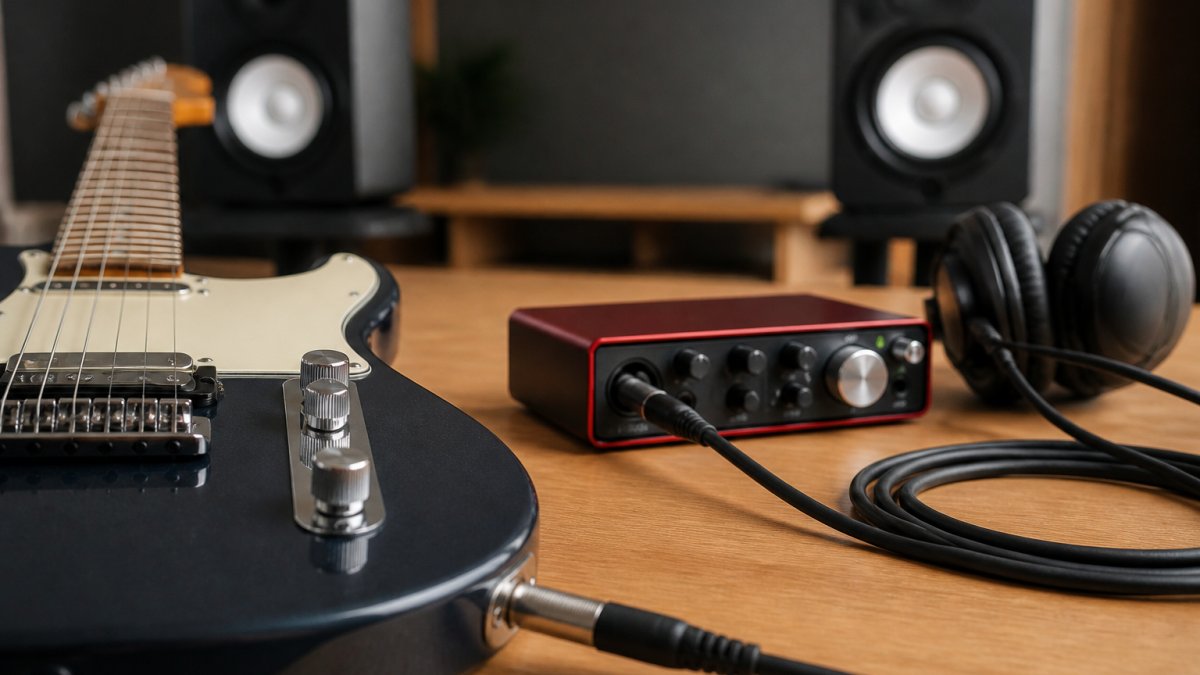
Connect Guitar to Audio Interface
Start with your guitar plugged into an instrument cable. Use a quality cable, cheap cables introduce noise and signal loss.
Plug the other end into the instrument input of your audio interface.
The interface converts your analog guitar signal to digital audio, which travels via USB (or Thunderbolt) to your computer.
Check your cable connections. A loose connection introduces noise, crackling, and signal loss. Push connectors firmly into place. Wiggle them slightly to confirm they're seated.
Configure Your DAW and Arm a Track
Open your DAW and create a new audio track to record your guitar signal.
Set the input of the track to your audio interface's instrument input.
Enable monitoring on the track so you can hear yourself play. This is called "arming" the track.
AKG P220 Recording Large Diaphragm Condenser Microphone & Case →
Set the output of the track to your main stereo output so you can hear it in your headphones or monitors while playing.
Check your DAW's sample rate and bit depth.
Set Input Levels and Monitor Your Sound
Getting your input levels right is critical. Too loud and you'll clip (distort) the signal. Too quiet and you'll have to turn up the volume later, which amplifies noise.
Gain Staging and Input Level Targets
Gain staging is the process of setting appropriate levels at each stage of your signal chain.
Play at normal playing volume. Watch the input meter on your audio interface. The meter shows the strength of your signal.
Never let the signal clip. Clipping is permanent distortion. You can't fix it in mixing.
Once you've set the interface input level, check the level in your DAW.
The goal is consistent, clean signal with plenty of headroom. This gives you maximum flexibility in mixing.
Monitor Latency and Headphone Setup
Latency is the delay between when you play a note and when you hear it.
Most audio interfaces introduce some latency. Minimize it by:
- Using a lower buffer size in your DAW (128 samples instead of 512)
- Using a faster USB connection (USB 3.0 instead of USB 2.0)
- Disabling unnecessary plugins while recording
If latency is still a problem, enable direct monitoring on your audio interface. Direct monitoring sends the input signal directly to your headphones without going through your computer. This eliminates latency completely.
Use quality headphones for monitoring. Cheap headphones mask problems and make it hard to play in time. You need to hear yourself clearly.
Record Your Electric Guitar at Home
Now you're ready to record. You've learned how to set up a guitar for studio recording. Your guitar is prepared. Your signal chain is configured. Your levels are set.
Room Acoustics and Microphone Placement
If you're recording an amplifier with a microphone, room acoustics matter. Hard surfaces like tile and drywall reflect sound.
A dead room (lots of absorption) captures dry, direct tone.
Position the microphone close to the amplifier speaker. Six inches to one foot away is typical.
Use a microphone stand to hold the mic steady. Even small movements change the tone.
If you're using direct input or modeling, room acoustics don't matter. You're not recording the room's sound.
Tracking Scratch Recordings and Ideas
Start by recording scratch recordings, rough takes that capture your ideas and timing. Don't worry about perfection. You're documenting the song's structure and your performance.
Record multiple takes. Try different approaches. Play with dynamics and timing. These scratch recordings give you options during mixing.
Once you have solid scratch recordings, you can record final takes. By then, you know exactly what you want to play and how it should sound.
Troubleshoot Common Recording Issues
Problems happen. Here's how to fix the most common ones.
Clipping, Hum, and Unwanted Noise
Clipping means your signal is too loud. The peaks exceed the maximum level your interface can handle. The result is harsh, digital distortion.
Fix clipping by turning down your input gain.
Hum is a low-frequency buzz, usually 60 Hz in the United States. It comes from electrical interference in your cables or ground loops.
Fix hum by:
- Using shielded instrument cables
- Keeping cables away from power cords
- Checking that all connections are tight
- Using a ground lift switch on your audio interface (if available)
Unwanted noise includes finger slides, string squeaks, and breath sounds. Some noise is natural and adds character. Too much noise is distracting.
Reduce noise by:
- Using lighter strings that make less noise
- Damping the strings behind the nut
- Using a noise gate plugin (during mixing, not recording)
- Playing more carefully and deliberately
Latency and Timing Problems
Latency is the delay between playing and hearing. Even 10 milliseconds throws off your timing.
Fix latency by:
- Lowering your DAW's buffer size
- Enabling direct monitoring
- Using a faster USB connection
- Closing unnecessary programs on your computer
Timing problems happen when you can't hear yourself clearly or when latency throws you off.
Fix timing by:
- Using a click track or metronome
- Recording to a drum loop or backing track
- Enabling headphone monitoring so you hear yourself clearly
- Reducing latency as described above
Post-Recording Checklist
Before you finish your session, confirm that everything is saved and backed up.
- Save your project in your DAW
- Export a backup copy to an external drive
- Check that all tracks are labeled clearly
- Note any technical issues or equipment changes
- Listen back to your recordings to confirm quality
Recording electric guitar at home is achievable with the right setup and knowledge. The process starts before you plug in, your guitar needs to be in top condition. Then you choose a recording method that matches your goals and space.
At Specialty Traders, we understand that quality gear matters. Whether you're recording with an amplifier and microphone or using direct input, you need reliable equipment that works right out of the box.
Frequently Asked Questions
What should I check on my guitar before recording?
Before recording, inspect your strings for wear and replace them if they sound dull. Tune your guitar and check intonation across the fretboard. Verify that the neck relief is correct and the action height is comfortable and consistent. Finally, eliminate noise sources by checking for loose hardware, worn frets, or buzzing components. A well-maintained guitar produces cleaner recordings with fewer unwanted sounds that require editing later.
Should I change my guitar strings before recording?
Yes. New strings sound brighter and stay in tune better than worn strings, which is critical for studio recording. Worn strings also produce less consistent tone and can introduce unwanted noise. Fresh strings, like SIT Strings S946 Rock N' Roll Power Wound Nickel Electric Guitar Strings, provide great tone and longevity for nearly all recording applications. Allow new strings 24 hours to settle before final tuning and intonation checks.
How do I reduce guitar noise when recording?
Eliminate noise by replacing worn strings, tightening all hardware and tuning machines, and checking for loose frets or buzzing components. Use a humidifier to stabilize wood moisture if your climate is very dry. During recording, position your microphone away from electrical equipment and power cables. If using direct input, ensure your audio interface and cables are high-quality and properly shielded.
What recording method works best for home studio setups?
For beginners, direct input through an audio interface is the fastest and cleanest option, requiring only an instrument cable and USB connection to your computer. If you prefer amplifier tone, a microphone placed 6-12 inches from the amp speaker works well in a treated room. For silent recording and flexibility, amplifier modeling through a load box like the Boss W-TAE Core Waza Tube Amp Expander allows you to capture professional tube amp tones at home-friendly volumes without disturbing neighbors.
